Images play an important role in modern websites, blogs, online stores, social media platforms, and digital applications. They make content more engaging, communicate information visually, and help create a better user experience.
However, choosing the wrong image format can affect website performance, image quality, storage requirements, and loading speed.
Some image formats are designed to preserve detailed graphics, while others focus on reducing file size. Certain formats support transparent backgrounds, while others are better suited to photographs and complex images.
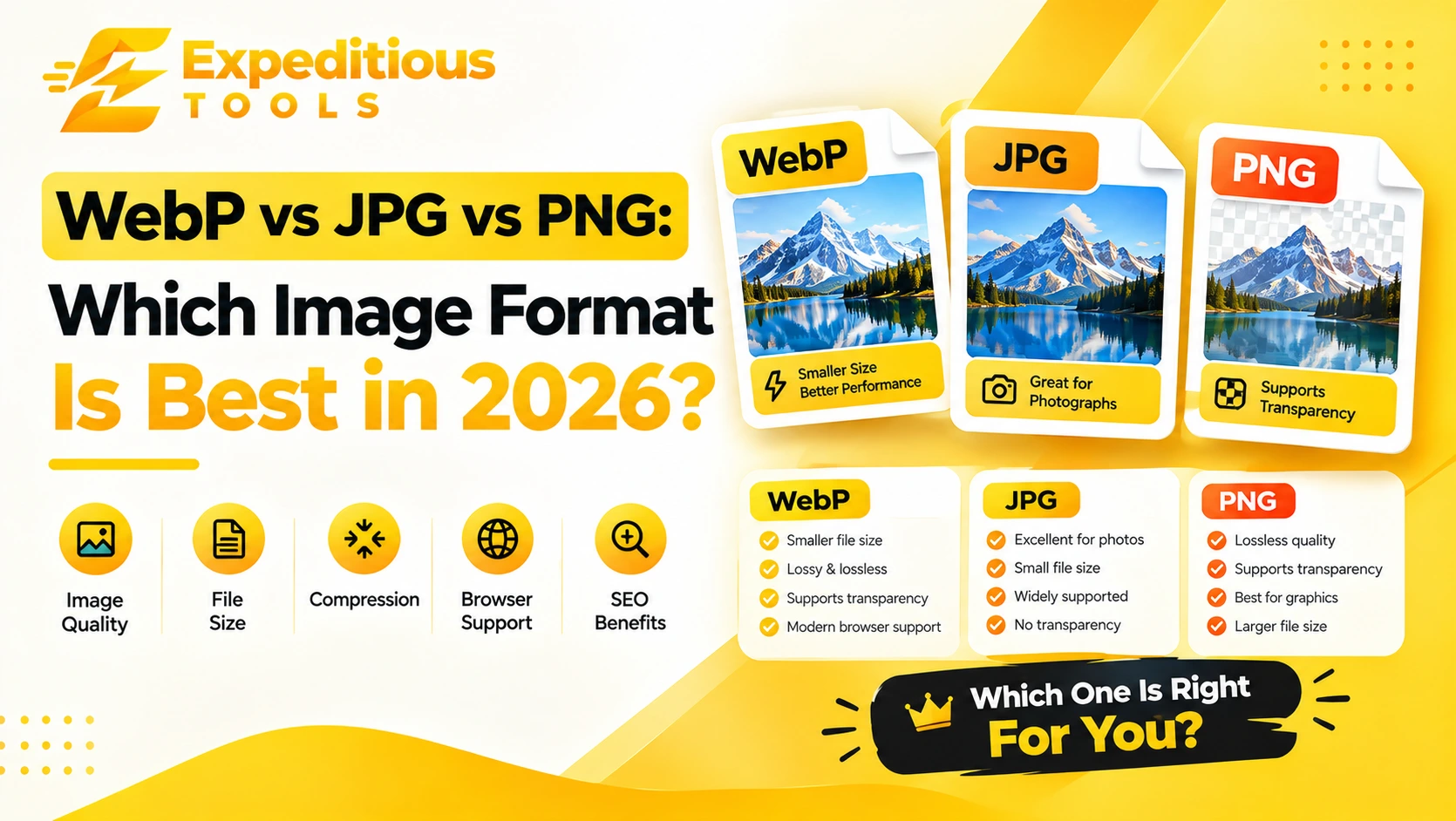
Three of the most commonly used image formats are WebP, JPG, and PNG.
But which one should you choose in 2026?
Is WebP better than JPEG? Does PNG provide better image quality than JPG? Should every website convert its images to
WebP? And when is PNG still the right choice?
In this complete guide, we will explore WebP vs JPG vs PNG, explain how each format works, compare their image quality and file sizes, discuss browser compatibility, and identify the best image format for websites, photography, logos, screenshots, and other digital content.
We will also cover practical image conversion methods, SEO considerations, common mistakes, and recommendations to help you choose the right format for your needs.
What Are WebP, JPG, and PNG?
Before comparing these formats, it is important to understand what they are and how they work.
What Is WebP?
WebP is a modern image format developed by Google and introduced in 2010.
It was designed to provide smaller image files while maintaining good visual quality.
WebP supports both lossy and lossless compression, making it suitable for different types of images.
It also supports transparency and animation.
Some important WebP features include:
- Lossy image compression.
- Lossless image compression.
- Transparent backgrounds (alpha channel).
- Animated images.
- Smaller file sizes in many situations.
- Support for a wide range of modern browsers.
WebP is particularly useful for websites because it can reduce image file sizes without requiring a major compromise in visual quality.
What Is JPG or JPEG?
JPG, also known as JPEG, is one of the most widely used image formats.
JPEG stands for Joint Photographic Experts Group, the organization associated with the format's development.
JPG uses lossy compression, which means some image information is discarded to reduce file size.
It is especially effective for photographs and images containing complex color variations.
Common uses include:
- Digital photography.
- Website photographs.
- Product images.
- Travel pictures.
- Social media graphics.
- Image sharing and storage.
JPG is widely supported across browsers, operating systems, image editors, and digital devices.
One important limitation is that standard JPG images do not support transparent backgrounds.
What Is PNG?
PNG stands for Portable Network Graphics.
It is a raster image format that uses lossless compression.
Unlike JPG, PNG preserves image data during compression, making it suitable for graphics that require sharp edges, clear text, and transparent backgrounds.
PNG supports different transparency levels through its alpha channel.
Common uses include:
- Logos.
- Icons.
- Screenshots.
- Diagrams.
- Interface elements.
- Graphics with transparent backgrounds.
- Images containing text and sharp edges.
PNG is particularly useful when preserving exact pixel information is more important than minimizing file size.
WebP vs JPG vs PNG: Quick Comparison
Here is a quick overview of the three formats.
| FeatureWebPJPG / JPEGPNG | |||
| Compression | Lossy and lossless | Lossy | Lossless |
| Transparency | Yes | No | Yes |
| Animation | Yes | No (standard JPG) | APNG variant |
| Photography | Excellent | Excellent | Supported, often larger |
| Logos | Good | Usually not ideal | Excellent |
| Screenshots | Good | Can create artifacts | Excellent |
| File size | Often smaller | Often small | Often larger |
| Browser support | Modern browsers | Virtually universal | Virtually universal |
| Best use | Web images | Photographs | Graphics and transparency |
The best format depends on the type of image, required quality, file size, and compatibility needs.
1. WebP vs JPG: Which Format Is Better?
The comparison between WebP and JPEG is particularly important for website owners and developers.
Both formats can produce high-quality photographs, but they use different compression technologies.
WebP Compression
WebP offers both lossy and lossless compression.
Lossy WebP can reduce image file sizes while maintaining visually acceptable quality.
Lossless WebP preserves the original image information while applying compression.
In many common web-image scenarios, WebP produces smaller files than JPEG at comparable visual quality.
However, the actual result depends on the source image, encoder, quality settings, and compression method.
JPG Compression
JPG uses lossy compression.
It reduces file size by discarding image information that may be less noticeable to human vision.
This makes it effective for photographs, especially when users need a balance between quality and file size.
However, repeatedly saving and recompressing JPG images can introduce additional quality loss.
WebP vs JPEG: Key Differences
| FeatureWebPJPG | ||
| Compression | Lossy and lossless | Lossy |
| Transparency | Supported | Not supported |
| File size | Often smaller | Can be larger |
| Photo quality | Very good | Very good |
| Compatibility | Excellent in modern browsers | Extremely broad |
| Repeated lossy saving | Can degrade quality | Can degrade quality |
When Should You Use WebP?
Choose WebP when:
- You are optimizing website images.
- You want smaller image files.
- You need transparent images with efficient compression.
- You are building a modern website.
- You want to reduce image bandwidth.
When Should You Use JPG?
Choose JPG when:
- You need broad compatibility.
- You are sharing photographs.
- Your existing application requires JPEG files.
- You are uploading images to platforms that specifically request JPG.
- You need a familiar format for photography workflows.
Verdict: WebP is often the better choice for modern website delivery, while JPG remains a reliable option for photography, sharing, and compatibility.
2. PNG vs JPG: Which Provides Better Image Quality?
The PNG vs JPG quality comparison is slightly different because these formats are designed for different purposes.
PNG uses lossless compression, while JPG uses lossy compression.
This difference affects how they preserve image details.
PNG Image Quality
PNG preserves pixel information during its lossless compression process.
This makes it useful for:
- Text-based graphics.
- Logos.
- Icons.
- Screenshots.
- Diagrams.
- Illustrations.
- Transparent images.
For images that require precise edges and clear text, PNG can produce better results than a heavily compressed JPG.
However, PNG files can become significantly larger, especially when used for complex photographs.
JPG Image Quality
JPG uses lossy compression to reduce file size.
At high-quality settings, JPG can preserve excellent visual detail while producing much smaller files than PNG for many photographs.
However, excessive compression can introduce visible artifacts.
These may include:
- Blurred details.
- Block-like patterns.
- Color distortion.
- Noise around sharp edges.
- Loss of fine texture.
PNG vs JPG: Example
Imagine you have a company logo containing text and a transparent background.
Saving it as JPG creates two problems:
- The transparent background is replaced with a solid background.
- Lossy compression may introduce artifacts around text and edges.
PNG is generally more appropriate for this type of image.
Now imagine you have a high-resolution landscape photograph.
PNG may create a very large file without providing a noticeable visual advantage over a properly optimized JPG.
JPG is generally more practical for that photograph.
When Should You Use PNG?
Use PNG for:
- Transparent logos.
- Interface graphics.
- Screenshots with small text.
- Charts and diagrams.
- Graphics requiring sharp edges.
- Images where lossless preservation is important.
When Should You Use JPG?
Use JPG for:
- Photographs.
- Travel images.
- Product photography.
- Blog images.
- General-purpose image sharing.
- Images where smaller file sizes are important.
Verdict: PNG is generally better for graphics that need lossless preservation and transparency. JPG is usually more efficient for photographs.
3. WebP vs PNG: Which Is Better?
WebP and PNG both support transparency, but their compression approaches are different.
PNG uses lossless compression.
WebP supports both lossy and lossless compression.
This makes WebP a flexible alternative for many images traditionally saved as PNG.
WebP Transparency
WebP supports alpha transparency.
This means you can create images with transparent backgrounds, making it suitable for:
- Website logos.
- Icons.
- Product cutouts.
- UI graphics.
- Decorative website elements.
Lossless WebP can preserve image data while often producing smaller files than PNG, although results depend on the image and encoder settings.
Lossy WebP can reduce file sizes further, but may introduce visual artifacts.
PNG Transparency
PNG supports transparency and is widely used for graphics that need clean edges.
It is particularly useful when working with logos, screenshots, and graphics that need consistent rendering across different software environments.
WebP vs PNG Comparison
| FeatureWebPPNG | ||
| Transparency | Yes | Yes |
| Lossless compression | Yes | Yes |
| Lossy compression | Yes | No |
| Typical file size | Often smaller | Often larger |
| Sharp graphics | Good | Excellent |
| Browser support | Modern browsers | Virtually universal |
| Animation | Yes | APNG variant |
When Should You Use WebP Instead of PNG?
WebP is a strong choice when you want:
- Smaller transparent website images.
- Optimized graphics.
- Faster image delivery.
- Reduced bandwidth usage.
- Modern browser compatibility.
PNG may still be preferable when:
- A particular application requires PNG.
- You need maximum compatibility with older software.
- Your image-editing workflow depends on PNG.
- You need predictable lossless graphics handling.
Verdict: WebP is often a more storage-efficient choice for website graphics, while PNG remains an excellent format for editing, compatibility, and lossless image workflows.
WebP Image Advantages
WebP offers several advantages that make it popular for modern web development.
1. Smaller File Sizes
One of the biggest WebP image advantages is its ability to produce smaller files in many situations.
Smaller images require less data to transfer from the server to the visitor's browser.
This can be especially helpful for websites with many product images, blog illustrations, or high-resolution photographs.
2. Supports Lossy and Lossless Compression
Unlike JPG, which uses lossy compression, WebP provides both lossy and lossless options.
This gives developers more flexibility when optimizing different image types.
For example:
- Use lossy WebP for photographs.
- Use lossless WebP for graphics where preserving image data matters.
- Use transparency when creating images without backgrounds.
3. Supports Transparency
WebP supports transparent backgrounds, making it suitable for logos, icons, and product images.
You do not necessarily need to use PNG for every transparent website image.
4. Supports Animation
WebP also supports animated images.
It can provide an alternative to GIF for certain animated graphics, often with better compression.
5. Improves Website Performance Opportunities
Smaller image files can help reduce page weight and network transfer requirements.
This may contribute to faster loading experiences, especially for visitors using mobile networks.
However, changing image formats alone does not guarantee a faster website. Image dimensions, caching, server response, lazy loading, and other performance factors also matter.
Which Image Format Is Best for Websites in 2026?
If your goal is to build a fast, modern, and search-engine-friendly website, image format selection should be part of your optimization strategy.
There is no single image format that is best for every situation.
However, WebP is a strong default choice for many website images in 2026.
Here is a practical recommendation.
Use WebP for Website Photographs
WebP is useful for:
- Blog featured images.
- Article illustrations.
- Product photographs.
- Background images.
- General website visuals.
Its compression options can help reduce image sizes while maintaining good visual quality.
Use WebP or PNG for Transparent Graphics
If your website contains transparent images, both WebP and PNG are suitable.
Choose WebP when you want efficient web delivery and PNG when compatibility or your existing editing workflow makes it more appropriate.
Use JPG for Photography Compatibility
JPG remains useful when you need a broadly supported image format for external platforms, older applications, or workflows that specifically require JPEG.
Consider SVG for Logos and Icons
Although this article focuses on WebP, JPG, and PNG, SVG deserves a mention.
SVG is a vector format rather than a conventional raster image format.
It is especially useful for logos, icons, and illustrations that need to scale without becoming pixelated.
For simple vector graphics, SVG can be more appropriate than all three formats.
Recommended Image Format by Use Case
| Image TypeRecommended Format | |
| Blog featured images | WebP |
| Website photographs | WebP or JPG |
| Transparent logos | WebP or PNG |
| Screenshots with text | PNG or lossless WebP |
| Product photographs | WebP or JPG |
| Website icons | SVG or WebP |
| Complex diagrams | SVG or PNG |
| Animated website graphics | WebP or GIF |
| General photo sharing | JPG |
| Lossless graphics | PNG or lossless WebP |
The best choice depends on the visual requirements and delivery environment.
How Image Formats Affect Website SEO
Image formats do not directly guarantee higher search rankings.
However, image optimization can influence important website performance factors that contribute to a better user experience.
1. Page Loading Speed
Large images can increase page weight and take longer to download.
Using efficient formats can reduce the amount of data transferred.
This can help improve loading performance, especially on mobile devices and slower connections.
2. Core Web Vitals
Google's Core Web Vitals measure aspects of real-world user experience.
Three important metrics include:
- Largest Contentful Paint (LCP): Measures how quickly the largest visible content element loads.
- Interaction to Next Paint (INP): Measures how responsive a page is to user interactions.
- Cumulative Layout Shift (CLS): Measures unexpected layout movement.
Images can influence these metrics.
For example, a large hero image may affect LCP if it takes too long to load.
Images without reserved dimensions can contribute to layout shifts.
Using an optimized image format, specifying image dimensions, and loading resources appropriately can help improve performance.
3. Reduced Bandwidth Usage
Smaller image files consume less bandwidth.
This can be beneficial for:
- Websites with many visitors.
- Online stores with large product catalogs.
- Image-heavy blogs.
- Mobile users.
- Websites hosted on limited resources.
4. Better Mobile Experiences
Mobile visitors may use slower or more expensive internet connections.
Efficient images can reduce unnecessary data usage and help pages load more comfortably.
5. Image SEO Still Matters
Choosing WebP does not replace other image SEO practices.
You should also:
- Use descriptive image filenames.
- Write meaningful alt text.
- Compress images appropriately.
- Choose suitable image dimensions.
- Use responsive images.
- Avoid unnecessary large images.
- Implement lazy loading for appropriate off-screen images.
- Provide image sitemaps when useful.
A well-optimized image strategy combines the right format with the right dimensions, quality, and delivery method.
How to Convert WebP to JPG
Sometimes you receive a WebP image but need a JPG version.
For example, a platform may not accept WebP uploads, or you may need to use the image in an application that expects JPEG.
In these situations, you can convert WebP to JPG using an online image converter.
Step 1: Select Your WebP Image
Choose the WebP file you want to convert.
For example:
product-image.webp
Step 2: Open an Online Image Converter
Open a reliable image conversion utility in your browser.
Choose the WebP-to-JPG conversion option if available.
Step 3: Upload the WebP File
Select the image from your device and upload it to the converter.
Check the file size and supported image dimensions if the tool has upload restrictions.
Step 4: Select JPG as the Output Format
Choose JPG or JPEG as the desired output format.
If quality settings are available, select an appropriate value based on your intended use.
Step 5: Convert and Download
Start the conversion process.
Once completed, download the resulting JPG image.
Open it to verify that the image looks correct.
Important: Transparency During Conversion
WebP supports transparency, but JPG does not.
If you convert a transparent WebP image into JPG, the transparent areas must be replaced with a background color.
Depending on the converter, this may be white, black, or another selected color.
Always check the background after conversion.
How to Convert JPG to WebP
Converting JPG images to WebP can help optimize website assets.
The process is similar to converting WebP to JPG.
- Select your JPG image.
- Open an online image converter.
- Upload the image.
- Choose WebP as the output format.
- Select the desired quality settings.
- Convert and download the image.
- Compare the output with the original.
For photographs, lossy WebP is often a practical option.
However, converting an already compressed JPG into another lossy format can introduce additional quality loss.
Keep the original file and avoid repeatedly converting the same image between lossy formats.
How to Convert PNG to WebP
PNG-to-WebP conversion is useful when optimizing transparent website graphics.
Follow these steps:
- Choose your PNG image.
- Open a compatible image converter.
- Upload the image.
- Select WebP as the output format.
- Choose lossless WebP if preserving pixel information is important.
- Start the conversion.
- Download and inspect the resulting image.
If the image contains transparency, confirm that the converted WebP preserves its transparent background.
How to Choose the Right Image Quality Settings
Image quality settings determine how much compression is applied to an image.
The correct settings depend on the image type and intended use.
High Quality
Use high-quality settings when:
- The image contains important visual details.
- It is a featured image.
- It is used in product photography.
- You want to preserve fine textures.
Medium Quality
Medium-quality settings are often suitable for:
- Blog images.
- General website photographs.
- Decorative images.
- Content thumbnails.
Lower Quality
Lower-quality settings can be appropriate for small thumbnails or images where visual detail is less important.
However, excessive compression can create noticeable artifacts.
Do Not Rely Only on File Size
The smallest image is not always the best image.
An image that is too heavily compressed may look blurry or distorted.
Compare the original and optimized versions at their actual display size before publishing.
Common Image Optimization Mistakes
Even when developers choose the right format, poor image handling can reduce performance and quality.
Here are some mistakes to avoid.
1. Using PNG for Every Image
PNG is excellent for transparent graphics and lossless images.
However, using PNG for every photograph can create unnecessarily large files.
Choose JPG or WebP for many photographic images.
2. Using JPG for Transparent Logos
JPG does not support transparency.
Saving a transparent logo as JPG introduces a background and may create compression artifacts around the edges.
Use PNG, WebP, or SVG when appropriate.
3. Converting Images Without Checking Quality
Converting an image does not automatically improve its quality.
Lossy conversion can reduce visual detail.
Always inspect the output.
4. Uploading Oversized Images
A 5000-pixel-wide image may be unnecessary if the website displays it at only 800 pixels.
Resize images according to their actual display requirements.
5. Ignoring Responsive Images
A large desktop image may not be necessary for a small mobile screen.
Use responsive image techniques such as the HTML srcset and sizes attributes to let browsers select appropriate image resources.
6. Forgetting Image Dimensions
Specify image width and height where appropriate.
This helps browsers reserve space before images load and can reduce unexpected layout shifts.
7. Repeatedly Recompressing Images
Repeatedly converting between JPG and lossy WebP can gradually reduce quality.
Keep original source files and generate optimized versions from those originals whenever possible.
WebP, JPG, and PNG: Browser Compatibility in 2026
Browser compatibility is an important consideration when choosing an image format.
JPG and PNG have extremely broad support across browsers and devices.
WebP is also supported by all major modern browsers, making it a practical choice for most current websites.
For older environments or specialized software, compatibility should still be tested.
Should Websites Still Use JPG and PNG?
Yes.
Even though WebP is widely supported, JPG and PNG remain useful.
There are situations where:
- A third-party platform requires JPG.
- A design application expects PNG.
- An existing workflow depends on JPEG.
- A particular graphic needs lossless PNG handling.
- A website needs a fallback for an older environment.
You do not need to convert every image just because WebP is available.
Choose formats according to actual requirements.
Using HTML Picture for Multiple Formats
Developers can use the HTML <picture> element to provide multiple image formats.
For example:
<picture>
    <source
        srcset="images/product-image.webp"
        type="image/webp"
    >

    <img
        src="images/product-image.jpg"
        alt="Product image"
        width="800"
        height="600"
    >
</picture>
In this example:
- The browser can use the WebP image when supported.
- The JPG image provides a fallback.
- The alt attribute describes the image.
- Width and height help reserve layout space.
Modern browsers generally support WebP, so a fallback may not always be necessary. However, it can be useful for particular compatibility requirements.
Is AVIF Better Than WebP, JPG, and PNG?
AVIF is another modern image format worth knowing about.
It is based on the AV1 image coding technology and supports both lossy and lossless image compression, transparency, and other advanced image features.
In some situations, AVIF can produce smaller files than WebP at comparable visual quality.
However, results vary depending on the image and encoding settings.
WebP vs AVIF
| FeatureWebPAVIF | ||
| Compression | Lossy and lossless | Lossy and lossless |
| Transparency | Yes | Yes |
| Animation | Yes | Yes |
| Compression efficiency | Very good | Often excellent |
| Browser support | Broad | Broad in modern browsers |
| Encoding speed | Generally faster | Can be slower |
AVIF can be useful when reducing image sizes is a priority and your image pipeline supports it.
WebP remains a practical option because it offers a good balance of compression, compatibility, and processing support.
For many websites, supporting WebP and AVIF through an appropriate image delivery strategy can be beneficial.
Best Practices for Website Image Optimization
If you want to improve website performance in 2026, follow these practical recommendations.
1. Choose the Correct Format
Use WebP for many website photographs and graphics, JPG for compatibility-focused photographic workflows, and PNG for graphics requiring lossless preservation or transparency.
2. Resize Before Uploading
Do not upload unnecessarily large images.
Resize images according to their actual display dimensions.
3. Compress Images Carefully
Use suitable compression settings.
Avoid reducing image quality so much that the result becomes visibly distorted.
4. Use Descriptive File Names
Instead of:
IMG_20261030_123456.webp
use:
webp-vs-jpg-vs-png-guide.webp
Descriptive filenames help organize image assets and provide useful context.
5. Write Useful Alt Text
Alt text should describe the image meaningfully.
For example:
<img
    src="webp-vs-jpg-vs-png.webp"
    alt="Comparison of WebP, JPG, and PNG image formats"
>
Avoid stuffing keywords into alt text unnaturally.
6. Use Lazy Loading Appropriately
For images below the initial visible area, lazy loading can help avoid downloading resources before they are needed.
Example:
<img
    src="blog-image.webp"
    alt="Image format comparison"
    loading="lazy"
    width="800"
    height="450"
>
Do not automatically lazy-load the main above-the-fold hero image or the likely LCP image. Such images may benefit from being loaded eagerly and, where appropriate, prioritized.
7. Use a Content Delivery Network
A CDN can help deliver images from locations closer to website visitors.
Some image CDNs also support automatic resizing, compression, and format selection.
8. Keep Original Images
Always preserve original files before compressing or converting them.
This gives you the option to generate different versions later without starting from an already degraded image.
Frequently Asked Questions (FAQs)
Is WebP better than JPG?
WebP is often better for modern website delivery because it can produce smaller files at comparable visual quality and supports transparency. JPG remains useful for photography and broad compatibility.
Is WebP better than PNG?
WebP can produce smaller files than PNG in many situations and supports both lossy and lossless compression. PNG remains useful for graphics, lossless workflows, and applications that require PNG.
Which image format is best for websites in 2026?
WebP is an excellent default choice for many website images. However, PNG, JPG, SVG, and AVIF also have important uses depending on image content, quality requirements, and compatibility.
Does WebP reduce image quality?
Lossy WebP compression discards some image information, so quality can decrease depending on the settings. Lossless WebP preserves the original pixel information.
Can WebP images have transparent backgrounds?
Yes. WebP supports transparency, making it suitable for transparent logos, icons, product images, and other graphics.
Is PNG higher quality than JPG?
PNG uses lossless compression, while JPG uses lossy compression. PNG can preserve pixel information more accurately, but JPG can deliver excellent photographic quality at significantly smaller file sizes.
Can I convert WebP to JPG?
Yes. You can use an online image converter or desktop image editor to convert WebP images to JPG. Remember that JPG does not support transparency, so transparent areas will need a background color.
Can I convert PNG to WebP without losing quality?
Yes. By using lossless WebP conversion, you can preserve the original pixel information. The resulting file size may be smaller or larger depending on the image.
Does WebP improve SEO?
WebP does not automatically improve search rankings. However, smaller image files can help improve page performance, which may contribute to a better user experience and support technical SEO efforts.
Does JPG support transparency?
No. Standard JPG images do not support transparent backgrounds. Use PNG, WebP, or another format that supports transparency.
Which format is best for logos?
SVG is often ideal for logos because it is scalable. If you need a raster image, PNG and WebP are suitable options, particularly when transparency is required.
Is WebP supported by all major browsers?
WebP is supported by all major modern browsers. If you need to support older or specialized environments, test compatibility and consider providing an alternative format.
Is PNG better for screenshots?
PNG is often a good choice for screenshots containing text, sharp edges, diagrams, and interface elements because its lossless compression avoids the artifacts that can occur with JPG.
Conclusion
Choosing the right image format is an important part of modern website development and image optimization.
When comparing WebP vs JPG vs PNG, there is no universal winner. Each format has strengths that make it suitable for different purposes.
WebP is an excellent option for modern websites because it supports lossy and lossless compression, transparency, and animation while often producing smaller files.
JPG remains a reliable format for photographs, image sharing, and compatibility-focused workflows.
PNG is still valuable for transparent graphics, logos, screenshots, and images where preserving pixel information is important.
For most modern websites in 2026, WebP is a strong default choice for general image delivery. However, the best results come from selecting the format according to the image itself rather than converting everything into one format.
Remember these simple recommendations:
- WebP: Best for many modern website images and efficient delivery.
- JPG: Best for broadly compatible photographic images.
- PNG: Best for lossless graphics and transparent images.
- SVG: Best for scalable logos and vector illustrations.
- AVIF: Worth considering when advanced compression is a priority.
A good image optimization workflow is simple:
Choose the Right Format → Resize → Compress → Optimize → Publish
Explore Expeditious Tools for convenient online image utilities that help you convert, compress, and manage images more efficiently.
Make every image work harder for your website without sacrificing the visual experience your visitors expect.