PDF files are one of the most widely used document formats in the digital world. From business reports and invoices to academic assignments, contracts, presentations, and scanned documents, PDFs make it easy to share information while preserving its original layout.
However, managing multiple PDF documents can sometimes become inconvenient. You might receive several PDF files that need to be combined into one document, or you may have a large PDF containing dozens of pages but only need a few specific sections.
Installing desktop software just to perform these simple tasks can feel unnecessary.
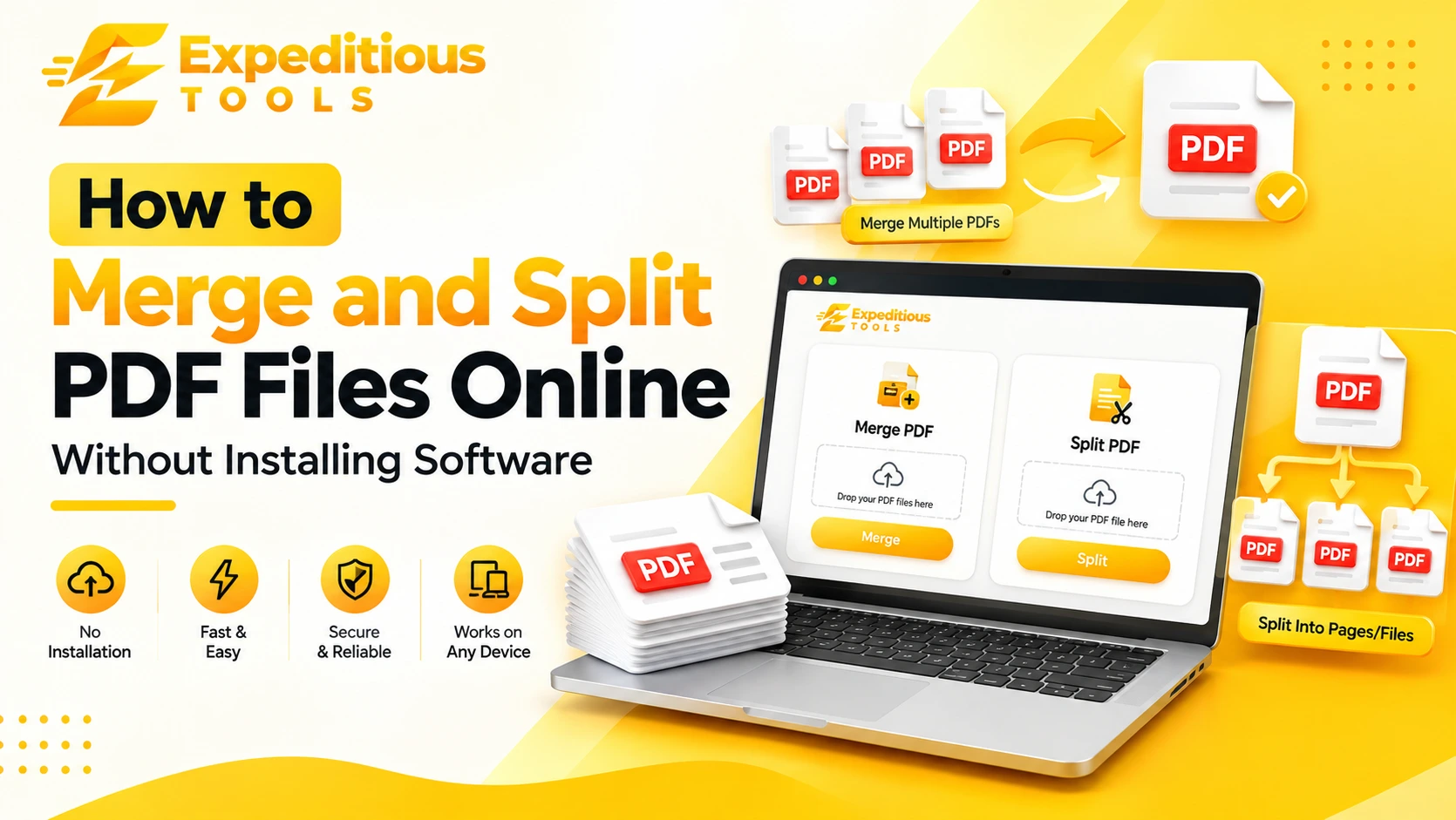
Fortunately, you can merge PDF files online or split large PDF documents directly from your browser without installing additional software. Online PDF tools make document management faster and more accessible, whether you are using a Windows computer, Mac, Linux system, tablet, or smartphone.
In this complete guide, we will explain how to merge and split PDF files online, how free PDF mergers work, how to extract specific PDF pages, how to combine multiple PDF files, and what to consider when choosing an online PDF tool. We will also cover document security, common PDF problems, practical examples, and useful tips for managing your files efficiently.
What Does It Mean to Merge PDF Files?
Merging PDF files means combining two or more separate PDF documents into a single PDF file.
For example, imagine you have three documents:
- Introduction.pdf
- Project-Details.pdf
- Conclusion.pdf
Instead of sharing these documents separately, you can merge them into one file called Project-Report.pdf.
The resulting document contains the pages from all selected PDFs in the order you specify.
PDF merging is particularly useful when you need to organize related documents, prepare reports, submit assignments, or share several files as one professional document.
Example of PDF Merging
Before merging:
Document 1: Introduction.pdf
Document 2: Project-Details.pdf
Document 3: Conclusion.pdf
After merging:
Project-Report.pdf
    ├── Introduction
    ├── Project Details
    └── Conclusion
The original documents remain separate unless you choose to replace or delete them yourself.
What Does It Mean to Split PDF Files?
Splitting a PDF means separating one PDF document into two or more smaller PDF files.
For example, suppose you have a 50-page PDF containing several chapters, but you only need pages 10 to 20.
Instead of sharing the entire document, you can split the PDF and extract the required pages.
A PDF splitting tool can help you:
- Extract specific pages.
- Separate individual chapters.
- Divide large documents into smaller files.
- Remove unnecessary sections by creating a new PDF without those pages.
- Organize documents according to different topics.
- Share only the information that is required.
Example of PDF Splitting
Original document:
Complete-Report.pdf
    ├── Pages 1–10
    ├── Pages 11–20
    ├── Pages 21–30
    └── Pages 31–40
After splitting:
Introduction.pdf  → Pages 1–10
Chapter-One.pdf   → Pages 11–20
Chapter-Two.pdf   → Pages 21–30
Conclusion.pdf    → Pages 31–40
This makes large documents easier to manage and distribute.
Why Merge and Split PDF Files Online?
Traditionally, users needed desktop applications to edit and organize PDF documents. Today, browser-based tools offer a convenient alternative for many everyday PDF tasks.
Here are some important benefits of using an online PDF merger and splitter.
1. No Software Installation Required
One of the biggest advantages is convenience.
You do not need to download a desktop application, install additional software, or configure complicated settings.
Simply open an online PDF tool in your browser, upload your documents, select the required operation, and process your files.
This is especially useful when working on a computer where you do not have permission to install applications.
2. Works Across Different Devices
Online PDF tools can generally be accessed from devices with a supported web browser.
These may include:
- Windows computers
- macOS devices
- Linux systems
- Android smartphones
- iPhones and iPads
- Tablets
The exact experience depends on the tool, browser, device capabilities, and available memory.
3. Saves Time
Combining multiple PDF documents manually can be inconvenient.
A free PDF merger can automate the process by combining selected documents into a single file.
Similarly, a PDF splitter can extract specific pages without requiring you to recreate the document manually.
4. Easy Document Organization
Merging and splitting PDFs helps keep related information organized.
For example, businesses can combine invoices into one monthly document, while students can extract individual chapters from large study materials.
5. Useful for Everyday Tasks
You do not need advanced technical knowledge to use most basic PDF merger and splitter tools.
The process generally involves selecting files, choosing page ranges or file order, and downloading the result.
How to Merge PDF Files Online
If you want to combine several documents into one PDF, follow these steps.
Step 1: Prepare Your PDF Files
First, identify the PDF documents you want to combine.
For example:
Cover-Page.pdf
Business-Proposal.pdf
Pricing-Details.pdf
Terms-and-Conditions.pdf
Check that the files are readable and that you have selected the correct versions.
Step 2: Open an Online PDF Merger
Open a reliable online PDF merger in your web browser.
Expeditious Tools provides online utilities designed to simplify common digital tasks. A PDF merging utility can help you combine documents without installing a separate desktop application.
Step 3: Upload Multiple PDF Files
Select the PDF documents you want to merge.
Depending on the tool, you may be able to:
- Select multiple files at once.
- Add files individually.
- Drag and drop documents into an upload area.
- Remove files you selected accidentally.
Check the tool's file size and file count limitations before uploading large documents.
Step 4: Arrange the File Order
The order of your documents matters.
For example, if you are preparing a business proposal, you might want the final document arranged like this:
- Cover page
- Executive summary
- Project details
- Pricing
- Terms and conditions
Many PDF merger tools allow you to rearrange files before combining them.
Always review the order before proceeding.
Step 5: Merge the PDF Files
Click the merge or combine option.
The tool will process the selected documents and generate a single PDF file.
Processing time can depend on the number of documents, their size, page count, and the tool's implementation.
Step 6: Download the Merged PDF
Once processing is complete, download the resulting PDF.
Open it and verify that:
- All expected documents are included.
- Pages appear in the correct order.
- Text and images remain readable.
- No pages are missing.
- The document opens correctly.
Your combined PDF is now ready to share or store.
How to Split PDF Online
Splitting a PDF is useful when you only need specific pages from a larger document.
Follow these steps to split PDF online.
Step 1: Select Your PDF Document
Choose the PDF file you want to split.
For example:
Annual-Report.pdf
Suppose this document contains 100 pages, but you only need pages 20 to 35.
Step 2: Open an Online PDF Splitter
Open a PDF splitting utility in your browser.
Look for a tool that supports page-range selection or individual page extraction.
Step 3: Upload Your PDF
Upload the document you want to process.
Wait for the tool to load the PDF and display the available page options, if supported.
Step 4: Select the Pages
Choose how you want to divide the document.
Common options include:
- Extract specific pages.
- Split by page ranges.
- Separate every page into an individual PDF.
- Divide a document into multiple sections.
- Split at selected page boundaries.
For example:
Pages to extract: 20–35
The resulting document should contain only the selected pages.
Step 5: Process and Download
Click the split or extract option.
After processing, download the generated PDF file or files.
Open the result to verify that the correct pages were extracted.
How to Combine Multiple PDF Files Into One Document
Combining multiple PDF files is useful in both personal and professional environments.
However, creating a properly organized document requires more than simply selecting files.
Here are some useful recommendations.
Organize Files Before Uploading
Give your documents meaningful names before combining them.
For example:
01-Cover.pdf
02-Introduction.pdf
03-Project-Overview.pdf
04-Budget.pdf
05-Conclusion.pdf
Numbering files can make the intended order easier to identify.
Check Page Orientation
Some PDFs contain portrait pages, while others contain landscape pages.
Merging them does not necessarily make their page orientations consistent.
Review the final document to ensure the layout is suitable.
Check Document Quality
If your PDFs contain scanned images, verify that the text and images remain clear after merging.
Merging should not normally require recompressing every page, but the behavior depends on the processing method.
Review the Final File
Always open the merged document before sharing it.
Check for missing pages, unexpected blank pages, incorrect ordering, and formatting problems.
What Is a PDF Page Extractor?
A PDF page extractor is a tool that allows users to select and save specific pages from a PDF document.
Unlike a basic PDF splitter that may divide an entire document into multiple sections, a page extractor focuses on retrieving the pages you actually need.
For example, imagine a PDF containing:
- Page 1: Cover
- Pages 2–5: Introduction
- Pages 6–20: Main report
- Pages 21–25: Financial information
- Page 26: Conclusion
If you only need the financial information, you can extract pages 21–25.
The extracted pages can then be saved as a separate PDF.
Common Uses of PDF Page Extraction
PDF page extraction is helpful for:
- Extracting selected chapters from textbooks.
- Saving specific pages from business reports.
- Sharing individual invoice pages.
- Collecting relevant pages from research papers.
- Separating application forms.
- Preparing presentations and reference documents.
It is particularly useful when sharing an entire document is unnecessary or inappropriate.
PDF Merger vs. PDF Splitter vs. PDF Page Extractor
These tools are related, but they perform different operations.
| ToolMain PurposeExample | ||
| PDF Merger | Combines multiple PDFs | Join five documents into one |
| PDF Splitter | Divides a PDF into smaller files | Separate a 100-page PDF into sections |
| PDF Page Extractor | Saves selected pages | Extract pages 5, 10, and 15 |
A PDF merger is best when you want to combine documents.
A PDF splitter is useful when you need to divide a large document.
A PDF page extractor is ideal when you only need particular pages.
Some online PDF utilities offer all three features in one interface.
Can You Merge PDF Files Without Software?
Yes. You can merge PDF without software by using a browser-based PDF merger.
These tools are designed to process documents through an online interface, so you do not necessarily need to install a desktop application.
A typical workflow looks like this:
Open Browser
     ↓
Visit Online PDF Merger
     ↓
Select PDF Files
     ↓
Arrange Document Order
     ↓
Click Merge
     ↓
Download Combined PDF
The same general approach applies to splitting PDF files.
However, the processing method varies between tools. Some perform operations directly inside the browser, while others upload files to a remote server.
If document privacy matters, understand how the specific service handles uploaded files before using it.
Is a Free PDF Merger Good Enough?
For many everyday document tasks, a free PDF merger can be sufficient.
You may not need expensive desktop software simply to combine a few PDF files or extract selected pages.
However, free tools can have limitations.
These may include:
- Maximum upload size.
- Maximum number of files.
- Page count restrictions.
- Processing speed limitations.
- Daily usage limits.
- Limited advanced editing features.
- Optional paid upgrades.
Before choosing a tool, check whether its free features support your requirements.
For basic merging and splitting, a straightforward online utility may be all you need.
Is It Safe to Merge and Split PDF Files Online?
Document security is an important consideration when using online PDF tools.
PDF documents can contain sensitive information, including:
- Personal details.
- Financial statements.
- Business contracts.
- Identity documents.
- Customer information.
- Confidential reports.
- Internal company records.
Before uploading a document, understand how the online service processes and stores files.
Check Whether Processing Happens in Your Browser
Some tools process PDF files locally using browser-based technologies.
In this approach, document processing can happen on your device without uploading the file to a remote server.
Other services upload documents to their servers for processing.
Neither approach should be assumed based only on the fact that a tool works in a browser.
Check the provider's privacy documentation to understand what happens to your files.
Look for HTTPS
Use websites that support HTTPS.
HTTPS encrypts the connection between your browser and the website, helping protect information while it is transmitted.
However, HTTPS alone does not guarantee that a service stores or processes your documents securely.
Review File Retention Policies
If a service uploads documents, check:
- Whether uploaded files are stored.
- How long files are retained.
- Whether files are automatically deleted.
- Whether third parties can access them.
- Whether documents are used for other purposes.
Do not assume that uploaded files are automatically deleted unless the provider clearly explains its retention policy.
Avoid Uploading Highly Confidential Documents
For sensitive contracts, financial records, identity documents, or confidential business information, consider using a trusted local PDF application instead.
A browser-based tool is convenient, but convenience should not come at the expense of document confidentiality.
Does Merging PDF Files Reduce Quality?
Generally, merging PDF files should preserve the existing content without noticeably reducing quality.
A PDF merger combines the documents into a single file. It does not necessarily need to convert every page into an image.
However, the final result depends on the tool's processing method.
Some tools may reprocess, compress, or convert parts of a document.
This can affect:
- Image resolution.
- Embedded fonts.
- Interactive form fields.
- Hyperlinks.
- Bookmarks.
- Digital signatures.
- Document metadata.
If maintaining the original document structure is important, test the tool with a non-sensitive sample first.
After merging, inspect the final PDF carefully.
What Happens to Digital Signatures When PDFs Are Merged?
Digital signatures require special attention.
A digital signature is associated with a particular document and its contents. Changing the signed document can invalidate its signature.
Merging, splitting, editing, or otherwise modifying a signed PDF may cause its existing digital signatures to become invalid or appear as modified.
If you need to combine signed documents, preserve the original signed files and check the signature status after processing.
For legally important documents, follow the relevant signing and document-management requirements rather than assuming that a merged PDF retains the original signatures' validity.
Common Problems When Merging or Splitting PDF Files
Although online PDF tools are generally straightforward, users may occasionally encounter problems.
Here are some common issues and possible solutions.
1. PDF File Cannot Be Uploaded
Possible reasons include:
- The file exceeds the upload size limit.
- The PDF is damaged.
- The browser does not support the selected operation.
- The internet connection is unstable.
- The file extension does not match the actual file format.
Solution: Check the file size, open the original PDF to confirm that it works, and try uploading it again.
2. Merged PDF Pages Appear in the Wrong Order
This usually happens when files are uploaded in an unexpected order.
Solution: Arrange the documents manually before merging. Open the final PDF and confirm the page sequence.
3. Some Pages Are Missing
Missing pages may result from incorrect page-range selections or processing problems.
Solution: Review the selected page ranges and compare the final document with the original.
4. PDF Splitting Takes Too Long
Large PDFs may take longer to process, particularly when they contain high-resolution scanned pages or many images.
Solution: Try processing smaller sections or use a suitable desktop application for very large documents.
5. The Resulting PDF Is Too Large
Combining several PDFs can create a large final file.
Solution: Consider using a PDF compressor after merging. Be careful with compression settings because excessive image compression can reduce visual quality.
6. Password-Protected PDFs Cannot Be Processed
Some PDFs are encrypted or protected by document permissions.
A tool may require the correct password or may not support the requested operation.
Solution: Use an authorized method to access the document and check its permission settings. Do not attempt to bypass restrictions on documents you are not authorized to modify.
Best Practices for Managing PDF Documents
Following a few simple practices can make PDF management more efficient.
Use Descriptive File Names
Avoid generic names such as:
document1.pdf
document2.pdf
finalfile.pdf
Instead, use meaningful names:
October-Invoices.pdf
Annual-Business-Report.pdf
Project-Proposal.pdf
This makes documents easier to identify.
Keep Original Files
Always preserve copies of your original documents before merging or splitting them.
This gives you a way to recover the original information if something goes wrong.
Verify Page Order
Before sharing a merged document, check the order of every section.
This is particularly important for contracts, reports, assignments, and business proposals.
Check File Size
If you are sending documents through email or uploading them to a website, check the final file size.
Some platforms have strict attachment or upload limits.
Use the Right Tool for the Task
Do not use a PDF merger when you only need to extract a few pages.
Likewise, do not split an entire document into dozens of files if you only need to combine two sections.
Choosing the appropriate tool saves time and reduces unnecessary processing.
Who Can Benefit from Online PDF Merger and Splitter Tools?
PDF management tools are useful across many industries and everyday situations.
Students
Students can combine assignments, lecture notes, research papers, and project documents into one PDF.
They can also extract specific chapters from large textbooks or reference materials.
Teachers and Educators
Teachers can combine worksheets, lesson plans, reading materials, and examination documents.
Splitting PDFs also makes it easier to distribute individual sections to students.
Business Professionals
Businesses frequently work with invoices, proposals, reports, contracts, and other documents.
A PDF merger can combine related records into organized files, while a splitter can separate specific sections for sharing.
Freelancers
Freelancers can combine portfolios, proposals, project reports, and supporting documents.
They can also extract relevant pages before sending information to clients.
Office Administrators
Administrative teams often manage large numbers of documents.
PDF merging and splitting can help organize records, prepare submissions, and simplify document distribution.
Everyday Users
Anyone who downloads, receives, or shares PDF files can benefit from simple PDF management tools.
You do not need to be a developer or technical professional to merge or split documents.
Why Use an Online PDF Tool from Expeditious Tools?
Expeditious Tools provides online utilities designed to make common digital tasks simpler and more accessible.
Instead of installing separate applications for everyday tasks, users can access browser-based tools for common file and development workflows.
A PDF merger or splitter is particularly useful when you need to:
- Combine multiple PDF files.
- Organize reports and assignments.
- Extract selected pages.
- Divide large documents.
- Prepare documents for sharing.
- Manage PDF files without installing additional software.
The goal is to reduce unnecessary steps and make routine digital tasks more convenient.
When using any online PDF utility, always review its file-size limits, supported features, and privacy practices before processing important documents.
Frequently Asked Questions (FAQs)
How can I merge PDF files online for free?
Open a free online PDF merger, select the PDF documents you want to combine, arrange them in the correct order, and click the merge option. Download the resulting PDF after processing.
Can I merge PDF files without installing software?
Yes. Browser-based PDF merger tools allow you to combine multiple PDF documents without installing a desktop application. The exact process depends on the tool you choose.
How do I split PDF online?
Open an online PDF splitter, upload your document, select the pages or page ranges you want to separate, and process the file. Download the resulting PDF documents.
Can I combine multiple PDF files into one document?
Yes. A PDF merger can combine multiple documents into a single PDF. Many tools also allow you to rearrange the files before merging.
What is a PDF page extractor?
A PDF page extractor allows you to select specific pages from an existing PDF and save them as a separate document.
Is a free PDF merger safe?
Safety depends on how the service handles uploaded documents. Check its privacy policy, file retention practices, processing method, and security information before uploading confidential files.
Can I merge PDF files on my mobile phone?
Yes. Many online PDF tools work through mobile browsers. You can select documents from your device and combine them without installing a dedicated desktop application. Mobile support and file-size limitations vary by service.
Does merging PDF files change their quality?
Merging does not necessarily reduce PDF quality. However, some tools may reprocess or compress document content. Review the resulting file to ensure images, fonts, and other elements remain intact.
Can I extract only one page from a PDF?
Yes. A PDF page extractor can save an individual page as a separate PDF if the selected tool supports page-level extraction.
Can I split a PDF into individual pages?
Many PDF splitters support separating every page into its own PDF file. Check whether the tool offers this option before processing.
Can I merge password-protected PDF files?
It depends on the document's encryption, permissions, and the tool's capabilities. You may need the correct password and authorization to process the documents.
Will merging PDFs preserve bookmarks and hyperlinks?
Not necessarily. Some tools preserve bookmarks and hyperlinks, while others may remove or alter them. Check the resulting document if these features are important.
Conclusion
Knowing how to merge PDF files online and split documents without installing software can make everyday document management much easier.
Whether you are combining business reports, organizing academic assignments, preparing invoices, extracting specific pages, or dividing a large document into smaller sections, online PDF tools provide a convenient way to handle these tasks.
A free PDF merger can help combine multiple documents into one file, while a PDF splitter or PDF page extractor allows you to retrieve the pages you actually need.
Before processing important documents, remember to check file order, verify the final output, preserve your original files, and understand how the online service handles uploaded information.
You should also pay attention to digital signatures, document permissions, and file quality when working with legally or professionally important PDFs.
For everyday document management, the process can be simple:
Upload → Arrange → Merge or Split → Download → Verify
With the right online utilities, you can merge PDF files online, split PDF online, and manage your documents without unnecessary software installations.
Explore Expeditious Tools for convenient online utilities that help make everyday digital tasks faster, simpler, and more accessible.