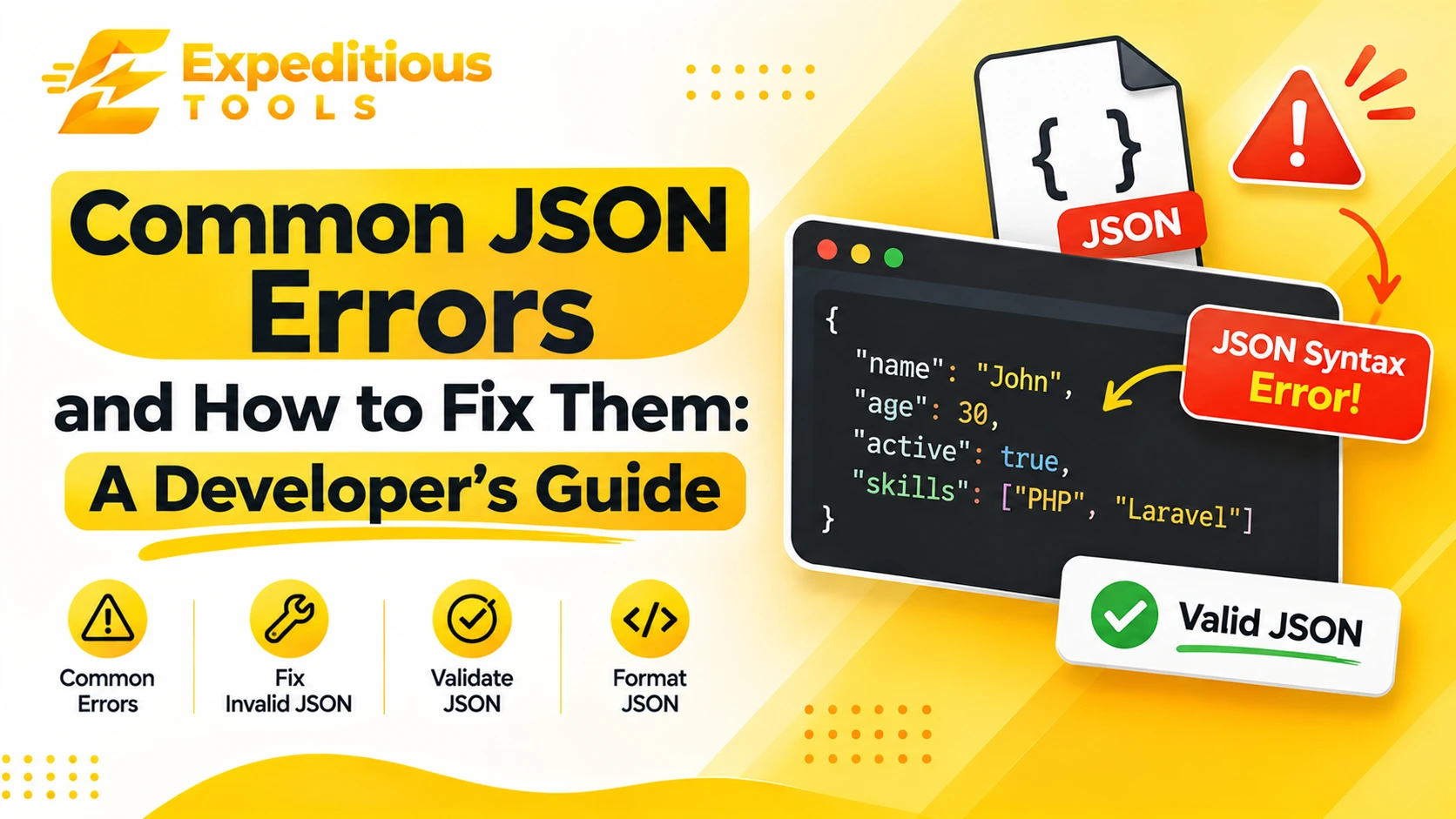
JSON is one of the most widely used data formats in modern software development. From REST APIs and web applications to mobile apps, configuration files, and cloud services, JSON provides a simple way to exchange structured information between different systems.
Despite its straightforward syntax, working with JSON can sometimes be frustrating. A missing comma, incorrect quotation mark, unmatched bracket, or unexpected character can prevent an application from reading an otherwise useful data structure.
These problems are commonly known as JSON syntax errors.
For developers, understanding how to identify and fix JSON errors is an essential skill. A small formatting mistake can cause an API request to fail, break a configuration file, interrupt an application workflow, or produce an unexpected parsing error.
Fortunately, most JSON syntax problems are easy to resolve once you understand the rules behind the format.
In this developer's guide, we will explore the most common JSON errors, explain why they happen, and demonstrate how to fix invalid JSON using practical examples. We will also cover JSON parsing errors, unexpected token messages, trailing commas, quotation mark problems, common JavaScript mistakes, and how a JSON validator online can simplify debugging.
Whether you are working with JavaScript, PHP, Laravel, Python, or REST APIs, this guide will help you troubleshoot JSON more confidently.
What Is JSON?
JSON stands for JavaScript Object Notation.
It is a lightweight, text-based data interchange format used to represent structured information. Although its name comes from JavaScript, JSON is language-independent and supported by many programming languages.
JSON organizes information using six data types:
- Strings
- Numbers
- Booleans
- Objects
- Arrays
- Null values
Here is a simple JSON example:
{
  "name": "John",
  "age": 30,
  "developer": true,
  "skills": ["PHP", "Laravel", "JavaScript"]
}
In this example:
nameis a string.ageis a number.developeris a boolean.skillsis an array containing strings.
JSON is commonly used for:
- REST API requests and responses
- Frontend and backend communication
- Application configuration
- Mobile application data
- Cloud service integrations
- Authentication and authorization data
- Database records
- Structured data and JSON-LD
Because JSON is used in so many development workflows, even a small syntax mistake can create problems across an application.
What Are JSON Syntax Errors?
JSON syntax errors occur when JSON data does not follow the required JSON grammar.
A JSON parser checks the structure of the supplied text. If it encounters an invalid character, missing separator, incorrectly formatted value, or unmatched bracket, it may stop processing and report an error.
Consider this example:
{
  "name": "John"
  "age": 30
}
The problem is a missing comma between the two properties.
Correct JSON:
{
  "name": "John",
  "age": 30
}
The missing comma may seem like a small issue, but it prevents a strict JSON parser from reading the object.
A JSON syntax error can happen in many situations, including:
- Writing JSON manually.
- Copying data from another application.
- Receiving malformed API responses.
- Editing configuration files.
- Converting JavaScript objects into JSON.
- Generating JSON dynamically.
- Working with nested objects and arrays.
Understanding the common causes makes it easier to diagnose and fix invalid JSON.
15 Common JSON Errors and How to Fix Them
Let's examine some of the most frequent JSON problems developers encounter, with incorrect examples, corrected versions, and practical explanations.
1. Missing Commas Between Properties
A missing comma is one of the most common JSON syntax errors.
JSON uses commas to separate properties inside objects and values inside arrays.
Incorrect JSON:
{
  "name": "John"
  "age": 30
}
The parser encounters the "age" property before finding the comma required after "John".
Correct JSON:
{
  "name": "John",
  "age": 30
}
How to fix it:
- Check the properties inside the object.
- Add commas between consecutive properties.
- Check array elements for missing separators.
- Do not add an unnecessary comma after the final item.
This error frequently occurs when manually editing large JSON objects.
2. JSON Trailing Comma Error
A JSON trailing comma error occurs when an unnecessary comma appears after the final property of an object or the final element of an array.
Some programming languages allow trailing commas in certain contexts, but standard JSON does not.
Incorrect JSON:
{
  "name": "John",
  "age": 30,
}
Correct JSON:
{
  "name": "John",
  "age": 30
}
The same rule applies to arrays.
Incorrect:
{
  "skills": [
    "PHP",
    "Laravel",
    "JavaScript",
  ]
}
Correct:
{
  "skills": [
    "PHP",
    "Laravel",
    "JavaScript"
  ]
}
How to fix it:
Remove the comma after the last property or array element.
When generating JSON in JavaScript, PHP, or another programming language, use a proper JSON serializer rather than manually assembling the output string.
3. Using Single Quotes Instead of Double Quotes
Standard JSON requires double quotes around property names and string values.
Developers sometimes use single quotes because they are familiar with JavaScript string syntax or other programming languages.
However, single-quoted strings are not valid JSON.
Incorrect JSON:
{
  'name': 'John',
  'city': 'Karachi'
}
Correct JSON:
{
  "name": "John",
  "city": "Karachi"
}
How to fix it:
Replace single quotes used as JSON string delimiters with double quotes.
Be careful when the actual text contains an apostrophe.
For example:
{
  "message": "John's account is active."
}
The apostrophe inside the string does not need to be escaped because the string is enclosed in double quotes.
4. Missing Double Quotes Around Property Names
Every JSON object property name must be a string enclosed in double quotes.
Incorrect JSON:
{
  name: "John",
  age: 30
}
This resembles a JavaScript object literal, but it is not valid JSON.
Correct JSON:
{
  "name": "John",
  "age": 30
}
How to fix it:
Place double quotes around every property name.
Remember that JSON and JavaScript objects are related but different. JavaScript allows unquoted property names in many situations, while standard JSON does not.
5. Missing Colons Between Keys and Values
JSON uses a colon to separate each property name from its value.
Incorrect JSON:
{
  "name" "John",
  "age": 30
}
There is no colon between "name" and "John".
Correct JSON:
{
  "name": "John",
  "age": 30
}
How to fix it:
Check every property and confirm that it follows this structure:
"property": "value"
This is especially important when working with deeply nested objects.
6. Unmatched Curly Braces
JSON objects begin with an opening curly brace { and end with a closing curly brace }.
Missing either brace can produce a JSON parsing error.
Incorrect JSON:
{
  "user": {
    "name": "John",
    "age": 30
}
The outer object is not properly closed.
Correct JSON:
{
  "user": {
    "name": "John",
    "age": 30
  }
}
How to fix it:
- Check every opening
{. - Confirm that it has a corresponding closing
}. - Pay special attention to nested objects.
- Use consistent indentation to make the hierarchy visible.
A JSON formatter can make this type of problem easier to identify.
7. Unmatched Square Brackets
Arrays use square brackets.
An array begins with [ and ends with ].
Incorrect JSON:
{
  "skills": [
    "PHP",
    "Laravel",
    "JavaScript"
}
The closing square bracket is missing.
Correct JSON:
{
  "skills": [
    "PHP",
    "Laravel",
    "JavaScript"
  ]
}
How to fix it:
Check every array opening bracket and ensure the corresponding closing bracket is present.
This becomes particularly important when arrays contain nested objects.
8. Incorrect Boolean Values
JSON supports two boolean values:
truefalse
They must be written in lowercase.
Incorrect JSON:
{
  "active": True,
  "verified": False
}
Correct JSON:
{
  "active": true,
  "verified": false
}
How to fix it:
Use lowercase true and false.
Do not put quotation marks around boolean values unless you intentionally want to store them as strings.
For example:
{
  "active": true,
  "status": "active"
}
Here, active is a boolean, while status is a string.
9. Using Undefined or Unsupported Values
JSON supports a limited set of data types.
Values such as undefined, NaN, and Infinity are not valid JSON values.
Incorrect JSON:
{
  "name": "John",
  "age": undefined,
  "score": NaN
}
Correct JSON:
{
  "name": "John",
  "age": null,
  "score": null
}
Use null when the value is intentionally absent or unknown and that meaning is appropriate for your application.
How to fix it:
- Replace unsupported values with valid JSON values.
- Convert non-finite numbers to an appropriate representation.
- Use
nullwhere suitable. - Review the output of your JSON serializer.
In JavaScript, JSON.stringify() handles some unsupported values automatically. For example, undefined object properties are omitted, while non-finite numbers become null.
10. Incorrect String Escaping
JSON strings must follow specific escaping rules.
Certain characters cannot appear unescaped inside a JSON string.
For example, quotation marks inside a string must be escaped.
Incorrect JSON:
{
  "message": "He said "Hello" to me."
}
The parser may interpret the quotation mark before Hello as the end of the string.
Correct JSON:
{
  "message": "He said \"Hello\" to me."
}
Common JSON escape sequences include:
| Escape Meaning | |
\" | Double quotation mark |
\\ | Backslash |
\/ | Forward slash, optionally escaped |
\b | Backspace |
\f | Form feed |
\n | Line feed |
\r | Carriage return |
\t | Tab |
\uXXXX | Unicode character escape |
How to fix it:
Escape quotation marks, backslashes, and control characters correctly.
When creating JSON programmatically, prefer a serializer instead of manually escaping strings.
11. Using Comments Inside JSON
Standard JSON does not support comments.
Developers sometimes add comments to explain configuration values, but this makes the document invalid JSON.
Incorrect JSON:
{
  "name": "John",
  // User's name
  "age": 30
}
Correct JSON:
{
  "name": "John",
  "age": 30
}
How to fix it:
Remove comments from standard JSON files.
If your project needs comments in configuration, consider a format designed to support them, such as JSONC, if the application and its tooling explicitly support that format.
Do not assume a JSONC file is valid standard JSON.
12. Invalid Number Formats
JSON numbers follow strict formatting rules.
For example, JSON does not allow leading zeros on ordinary integer numbers, and it does not support NaN or Infinity.
Incorrect JSON:
{
  "price": 00150
}
Correct JSON:
{
  "price": 150
}
Other valid number examples include:
{
  "integer": 100,
  "decimal": 25.50,
  "negative": -10,
  "scientific": 1.5e3
}
How to fix it:
- Remove unnecessary leading zeros.
- Use valid decimal notation.
- Avoid
NaNandInfinity. - Check whether the value should be a number or a string.
For example, a postal code such as "00123" should generally be represented as a string if its leading zeros are meaningful.
13. Extra or Unexpected Characters
A JSON document may contain an unexpected character before or after the actual JSON value.
Incorrect JSON:
Here is your response:

{
  "status": "success"
}
The explanatory sentence is not part of the JSON document.
Correct JSON:
{
  "status": "success"
}
JSON text must contain a valid JSON value rather than arbitrary explanatory text surrounding it.
How to fix it:
- Remove text outside the JSON structure.
- Check for unexpected characters.
- Inspect copied API responses.
- Confirm that the server returns JSON rather than an HTML error page.
This problem is particularly common when an application expects JSON but receives an error message or an HTML document.
14. Incorrect JSON Root Structure
A JSON text can represent an object, an array, a string, a number, a boolean, or null.
It does not have to begin with an object.
For example, all of these are valid JSON values:
{
  "name": "John"
}
[
  "PHP",
  "Laravel",
  "JavaScript"
]
"Hello World"
100
true
null
However, an application may expect a particular root structure.
For example, an API endpoint may expect an object but receive an array.
That can cause an application-level error even though the JSON itself is syntactically valid.
How to fix it:
Check both the JSON syntax and the data structure expected by the application or API contract.
15. Duplicate Object Keys
JSON object property names should be unique for predictable results.
Consider:
{
  "name": "John",
  "name": "Sarah"
}
This is not reliably handled across all systems. Many parsers accept duplicate names but retain only one value, often the last one.
Better JSON:
{
  "name": "Sarah"
}
How to fix it:
- Remove duplicate property names.
- Review generated JSON objects.
- Check data-merging logic.
- Use unique keys for each property.
Even when a parser accepts duplicate keys, relying on that behavior can cause inconsistent results between systems.
Understanding JSON Unexpected Token Errors
A JSON unexpected token error usually indicates that a parser encountered a character or value where it expected something else.
In JavaScript, an error may look like:
SyntaxError: Unexpected token 'a', "invalid..." is not valid JSON
The exact wording depends on the JavaScript runtime and the invalid input.
For example, this is invalid JSON:
{name: "John"}
The property name is missing double quotes.
Another example:
{
  "name": "John",
  "active": True
}
The uppercase True is invalid.
Unexpected token errors can also happen when an application expects JSON but receives something completely different.
For example, an API request may return:
<html>
  <body>
    404 Not Found
  </body>
</html>
If JavaScript attempts to parse this response as JSON, it may report an unexpected token because the response starts with < rather than a valid JSON value.
How to Fix an Unexpected Token Error
Follow these steps:
- Inspect the exact input being parsed.
- Identify the character mentioned in the error message, if available.
- Check quotation marks and commas.
- Confirm that objects and arrays are correctly closed.
- Look for unsupported values such as
undefinedorTrue. - Check whether the response is actually JSON.
- Validate the data before parsing it.
The error message often provides a useful starting point, but the surrounding input is important when diagnosing the actual problem.
What Is a JSON Parsing Error?
A JSON parsing error occurs when a JSON parser cannot interpret the supplied text as valid JSON.
Parsing is the process of reading structured text and converting it into a data structure that a program can use.
For example, JavaScript provides the JSON.parse() method.
const jsonText = '{"name":"John","age":30}';

const data = JSON.parse(jsonText);

console.log(data.name);
// John
If the supplied string contains invalid JSON, JSON.parse() throws a SyntaxError.
Example of a JSON Parsing Error
const jsonText = '{"name":"John",}';

const data = JSON.parse(jsonText);
The trailing comma makes the JSON invalid.
How to Handle JSON Parsing Errors in JavaScript
Use a try...catch block:
const jsonText = '{"name":"John",}';

try {
    const data = JSON.parse(jsonText);

    console.log(data);
} catch (error) {
    console.error("Invalid JSON:", error.message);
}
This prevents the parsing failure from becoming an unhandled exception.
However, catching an error does not fix the invalid JSON. You still need to correct the input or handle the failed response appropriately.
How to Fix Invalid JSON Step by Step
When JSON fails to parse, it is not always immediately obvious which part is causing the problem.
A systematic troubleshooting process can save time.
Step 1: Read the Error Message
Start by reviewing the parser's error message.
It may identify:
- An unexpected token.
- An invalid character.
- A missing separator.
- An unexpected end of input.
- A problem near a particular position.
Use this information to narrow down the location of the problem.
Step 2: Check Double Quotes
Confirm that every property name and string value uses double quotes.
Incorrect:
{
  name: 'John'
}
Correct:
{
  "name": "John"
}
Step 3: Check Commas and Colons
Look for missing commas between properties and missing colons between keys and values.
Also check for trailing commas.
Step 4: Check Brackets and Braces
Confirm that every object and array is correctly opened and closed.
Nested structures are particularly easy to misread.
Step 5: Check Data Types
Make sure values use valid JSON types.
Remember:
- Strings require double quotes.
- Numbers do not require quotes.
- Booleans must be lowercase.
nullmust be lowercase.undefined,NaN, andInfinityare not valid JSON values.
Step 6: Validate the JSON
Use a JSON parser or a trusted JSON validator online to identify syntax problems.
A validator can quickly determine whether the supplied text follows JSON syntax.
Step 7: Format the Corrected JSON
Once the JSON is valid, use JSON formatting online to improve indentation and readability.
A readable structure makes future debugging easier.
How to Use a JSON Validator Online
A JSON validator online is a browser-based tool that checks whether JSON data follows the required syntax.
It is particularly useful when you receive large API responses or work with JSON configuration files.
Most online JSON validators follow a simple workflow.
1. Copy Your JSON
Copy the JSON content you want to check.
For example:
{
  "name": "John",
  "age": 30,
}
2. Open an Online JSON Validator
Open a reliable JSON validation utility in your browser.
Expeditious Tools provides online utilities designed to make common developer tasks more convenient.
3. Paste the JSON
Place your JSON text inside the validator's input field.
4. Validate the Data
Run the validation process.
If the JSON contains a syntax problem, the validator may report an error or identify the approximate location.
5. Fix the Reported Problem
In this example, the validator should identify the trailing comma after 30.
Remove it:
{
  "name": "John",
  "age": 30
}
6. Format and Review
After validation succeeds, format the JSON to make its structure easier to inspect.
A validator helps identify syntax problems, while a formatter improves readability. Some tools combine both features.
JSON Formatting Online: Why It Helps Debugging
JSON formatting online is a convenient way to transform compact JSON into a readable structure.
Consider this compressed JSON:
{"user":{"id":101,"name":"John","active":true},"skills":["PHP","Laravel","JavaScript"]}
It is valid, but its nested structure is not immediately obvious.
A formatted version looks like this:
{
  "user": {
    "id": 101,
    "name": "John",
    "active": true
  },
  "skills": [
    "PHP",
    "Laravel",
    "JavaScript"
  ]
}
Formatting provides several benefits:
- Makes nested objects easier to understand.
- Helps identify missing or misplaced brackets.
- Improves API response inspection.
- Makes code reviews easier.
- Simplifies configuration file maintenance.
- Makes complex data easier to share with other developers.
Remember that formatting does not automatically repair invalid JSON. A strict formatter generally needs valid JSON before it can produce a properly formatted result.
Common JSON Errors in JavaScript
JavaScript applications frequently work with JSON through APIs, browser storage, and server communication.
Here are some common situations that can produce JSON errors.
1. Parsing an Invalid JSON String
const data = JSON.parse('{"name":"John",}');
The trailing comma causes a parsing error.
Correct version:
const data = JSON.parse('{"name":"John"}');
2. Parsing an API Response That Is Not JSON
A common mistake is assuming every API response contains JSON.
For example:
fetch("/api/users")
    .then(response => response.json())
    .then(data => console.log(data));
If the server returns an HTML error page, response.json() can reject with a parsing error.
A more defensive approach is:
async function getUsers() {
    try {
        const response = await fetch("/api/users");

        if (!response.ok) {
            throw new Error(`HTTP error: ${response.status}`);
        }

        const contentType = response.headers.get("content-type") || "";

        if (!contentType.includes("application/json")) {
            throw new Error("The server did not return JSON.");
        }

        const data = await response.json();

        console.log(data);
    } catch (error) {
        console.error("Request failed:", error.message);
    }
}

getUsers();
This checks the HTTP response and its content type before attempting to process the data.
3. Confusing JavaScript Objects With JSON
Consider this JavaScript object:
const user = {
    name: "John",
    age: 30
};
It is a valid JavaScript object. However, it is not JSON text.
To convert the object into JSON:
const jsonString = JSON.stringify(user);

console.log(jsonString);
Output:
{"name":"John","age":30}
Use JSON.stringify() when converting JavaScript data into JSON text, and JSON.parse() when converting valid JSON text into JavaScript data.
Common JSON Errors in PHP and Laravel
PHP applications frequently generate and consume JSON, particularly when building REST APIs.
PHP provides built-in functions for encoding and decoding JSON.
Encoding PHP Data Into JSON
$user = [
    "name" => "John",
    "age" => 30,
    "active" => true
];

$json = json_encode($user);

echo $json;
Output:
{"name":"John","age":30,"active":true}
Handling JSON Encoding Errors
Use JSON_THROW_ON_ERROR to make encoding failures easier to handle:
try {
    $json = json_encode(
        $user,
        JSON_THROW_ON_ERROR
    );

    echo $json;
} catch (JsonException $e) {
    echo "JSON encoding failed: " . $e->getMessage();
}
Decoding JSON in PHP
$json = '{"name":"John","age":30}';

try {
    $data = json_decode(
        $json,
        true,
        512,
        JSON_THROW_ON_ERROR
    );

    print_r($data);
} catch (JsonException $e) {
    echo "JSON parsing failed: " . $e->getMessage();
}
The second argument, true, tells PHP to decode JSON objects into associative arrays.
Common Laravel JSON Problems
Laravel applications commonly use JSON for:
- API responses.
- AJAX requests.
- Database JSON columns.
- Application configuration.
- Frontend and backend communication.
When debugging a Laravel API, inspect the actual response body rather than assuming that the endpoint returned valid JSON.
A validation failure, authentication redirect, server exception, or incorrect route may return a response different from the one your frontend expects.
Also remember that Laravel's response helpers can generate JSON responses:
return response()->json([
    'status' => 'success',
    'message' => 'User retrieved successfully',
    'data' => $user
]);
Using framework serialization helps avoid manually constructing JSON strings.
JSON Errors When Working With APIs
API communication is one of the most common places where JSON parsing errors occur.
Suppose a frontend application requests:
GET /api/products
The expected response might be:
{
  "status": "success",
  "products": [
    {
      "id": 1,
      "name": "Laptop"
    },
    {
      "id": 2,
      "name": "Mouse"
    }
  ]
}
However, the server might return an error:
<h1>500 Internal Server Error</h1>
If the frontend expects JSON, it may fail while parsing the response.
Common reasons include:
- Incorrect API endpoint.
- Authentication failure.
- Server-side exception.
- Missing route.
- Incorrect response headers.
- Proxy or gateway errors.
- An API returning HTML instead of JSON.
How to Troubleshoot API JSON Errors
- Open the browser's developer tools.
- Navigate to the Network tab.
- Select the failed API request.
- Check its HTTP status code.
- Inspect the response body.
- Review the response content type.
- Check the backend logs if the server returned an error.
This helps determine whether the problem is invalid JSON or an issue with the API itself.
How to Prevent JSON Syntax Errors
Fixing JSON errors is useful, but preventing them is even better.
Follow these practices to make JSON workflows more reliable.
1. Use JSON Serializers
Avoid manually building JSON strings whenever possible.
Use built-in serialization tools such as:
- JavaScript
JSON.stringify() - PHP
json_encode() - Python
json.dumps() - Java JSON libraries
These tools handle many formatting and escaping requirements automatically.
2. Validate JSON Before Using It
Validate external JSON data before processing it.
This is particularly important when working with user input, third-party APIs, and configuration files.
3. Use Consistent Formatting
Choose a consistent indentation style, such as two spaces or four spaces.
Readable JSON is easier to review and maintain.
4. Avoid Manual String Concatenation
Building JSON using string concatenation can introduce missing commas, incorrect quotes, and escaping problems.
Instead of:
const json = '{"name":"' + name + '"}';
Prefer:
const json = JSON.stringify({
    name: name
});
5. Check API Response Types
Do not assume that a successful or failed request always returns JSON.
Inspect HTTP status codes and response headers before parsing the body.
6. Test Nested Objects and Arrays
Complex JSON structures should be tested with realistic data.
Pay particular attention to nested arrays, objects, optional values, and empty collections.
7. Protect Sensitive Information
JSON may contain passwords, authentication tokens, API keys, and private user information.
Avoid pasting confidential data into online validators or formatters unless you understand their data-handling practices.
For sensitive information, prefer local validation tools or trusted development environments.
Is It Safe to Use an Online JSON Validator?
Online JSON validators and formatters can be convenient, but their privacy practices differ.
Some tools process submitted JSON locally in the browser. Others send data to a remote server.
Before using an online tool, consider:
- Does it process data locally or remotely?
- Does it store submitted content?
- Does it log requests?
- Does it use HTTPS?
- Does it explain its privacy practices?
Avoid pasting confidential API responses, passwords, access tokens, or private customer records into tools unless you trust their security and data-handling policies.
For sensitive development data, a local editor or command-line validator may be a better option.
Expeditious Tools: Validate and Format JSON More Easily
Developers regularly work with JSON while building websites, APIs, applications, and software integrations.
Finding a missing comma or an incorrectly placed quotation mark in a large JSON response can take unnecessary time.
Expeditious Tools provides online utilities designed to simplify common technical and development tasks.
An online JSON formatter and validator can make everyday JSON work more convenient by helping developers:
- Check JSON syntax.
- Identify common formatting mistakes.
- Validate objects and arrays.
- Improve indentation and readability.
- Inspect nested data structures.
- Prepare JSON for API debugging.
- Review structured data.
A simple workflow can make troubleshooting easier:
Paste JSON
    ↓
Validate Syntax
    ↓
Identify Errors
    ↓
Fix Invalid JSON
    ↓
Format JSON
    ↓
Review and Use
Whether you are debugging an API response, editing a configuration file, or learning JSON syntax, having a reliable validation and formatting utility can help reduce repetitive work.
Frequently Asked Questions
What are JSON syntax errors?
JSON syntax errors occur when JSON data does not follow standard JSON rules. Common examples include missing commas, incorrect quotation marks, trailing commas, unmatched brackets, and unsupported values.
How do I fix invalid JSON?
Start by checking the parser's error message. Then inspect quotation marks, commas, colons, brackets, braces, and data types. Use a JSON validator online to identify syntax problems, correct them, and validate the result again.
What causes a JSON unexpected token error?
An unexpected token error occurs when a JSON parser encounters a character or value that is not valid in its current position. Common causes include missing quotes, trailing commas, invalid values, or receiving HTML instead of JSON.
What is a JSON parsing error?
A JSON parsing error occurs when a program cannot convert JSON text into a usable data structure because the input is invalid or does not match the expected format.
What is a JSON trailing comma error?
A trailing comma error occurs when a comma appears after the final property in an object or the final element in an array. Standard JSON does not allow trailing commas.
Can JSON contain comments?
No. Standard JSON does not support comments. If you need comments in a configuration file, consider a format such as JSONC, provided your application supports it.
Are single quotes allowed in JSON?
No. Standard JSON requires double quotes around property names and string values. Single quotes are not valid string delimiters in JSON.
How do I validate JSON in JavaScript?
Use JSON.parse() inside a try...catch block. If the input is valid, it returns the corresponding JavaScript value. If the input is invalid, it throws a SyntaxError.
What is the difference between JSON formatting and validation?
JSON formatting improves readability by adding indentation and line breaks. JSON validation checks whether the data follows the required syntax. Some online tools provide both functions.
Why does my API return an unexpected token error?
Your application may be attempting to parse a response that is not valid JSON. Check the HTTP status code, response body, and content type. The server may have returned an HTML error page or another unexpected response.
Is an empty JSON object valid?
Yes. An empty JSON object is represented by:
{}
An empty JSON array is also valid:
[]
Is null valid JSON?
Yes. null is one of the six valid JSON data types. It must be written in lowercase without quotation marks.
Can a JSON file start with an array?
Yes. A JSON document can contain an array as its root value. It can also contain an object, string, number, boolean, or null.
Does a JSON formatter automatically fix errors?
Not necessarily. Most strict JSON formatters require valid JSON before formatting it. A validator may identify the problem, but you generally need to correct the invalid syntax first.
Conclusion
JSON is an essential part of modern development, but even small syntax mistakes can prevent applications from processing data correctly.
The most common JSON syntax errors include missing commas, trailing commas, incorrect quotation marks, missing colons, unmatched brackets, unsupported values, and unexpected characters.
Understanding these issues makes debugging easier, whether you are working with JavaScript, PHP, Laravel, Python, REST APIs, or configuration files.
When a JSON parsing error occurs, do not immediately rewrite the entire document. Start by reading the error message, inspecting the affected section, checking the JSON structure, and validating the corrected data.
Remember these important practices:
- Use double quotes for JSON strings and property names.
- Separate properties and array elements with commas.
- Avoid trailing commas and comments.
- Use only valid JSON data types.
- Escape special characters correctly.
- Use serializers instead of manually constructing JSON strings.
- Validate external data before processing it.
- Keep sensitive information private when using online tools.
A reliable JSON validator and formatter can make these everyday development tasks much easier.
Validate → Fix → Format → Review → Build.
With a better understanding of common JSON errors and the right development tools, you can troubleshoot parsing problems faster and build more reliable applications.
Explore Expeditious Tools for practical online utilities that help make everyday developer tasks simpler and more efficient.